
Start with a fillable PDF.
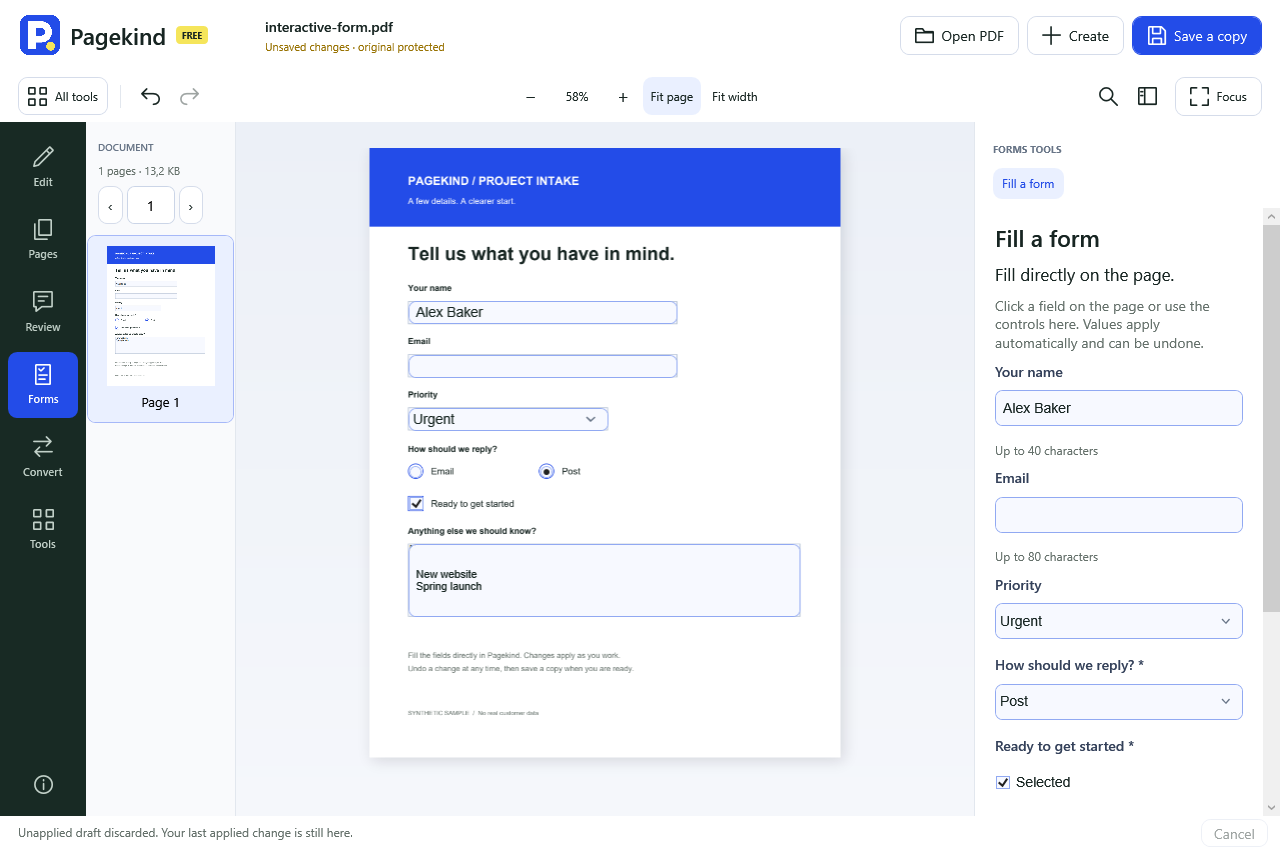
Some PDFs contain actual form fields. Others are pictures or ordinary page content that only look like a form. Open your document and choose Forms. Pagekind shows supported fields directly on the page and in the side panel.
Fill it as you go.
- Click a field and type. Your entry appears immediately. After a short pause, Pagekind checks the field and applies the value to your working document. You can keep typing while it does this.
- Make your selections. Tick a checkbox, choose a radio button, or select an option from a list. The page and side panel stay in sync.
- Check the result. Read through your answers. Use Undo and Redo to revisit applied changes. If an entry is refused, its draft stays visible with an explanation and the previous document value stays intact.
- Choose Save a copy. Save under a new filename when you are ready. Your original blank form stays available for next time.
What if a field refuses my entry?
A form can set a maximum length, restrict a field to one line, offer a fixed list of choices, or make a field read-only. Its font also needs to contain the characters you enter. Pagekind explains a rejected entry and keeps the previous value. Correct the draft to continue.
Give the next field a predictable place.
Preview field numbers and set row or column navigation in the form designer. Pagekind follows that rule in its on-page controls and uses arrow keys within a radio question.
One CSV row. One filled copy.
Choose Forms > Fill a copy from CSV to put one row of local data into supported existing PDF text fields. Choose the CSV separator, then Choose CSV. Match each PDF field to its column yourself; nothing is mapped automatically. Unmapped fields keep their existing values.
- Choose what a blank means. For each mapped field, keep retains the existing value, clear empties it, and error refuses an empty CSV value.
- Choose one data row and a new PDF location. Select Review this row and check the exact field values and output filename.
- Create the reviewed copy. Choose Create reviewed PDF copy. The CSV, original template and current PDF history stay unchanged. This creates one PDF, not a batch for every CSV row.
This workflow accepts UTF-8 CSV with up to 200 data rows and 40 columns, using comma, semicolon or tab separators. It maps supported visible, writable text fields only. Checkboxes, radio buttons, choices, password fields, hidden fields and signed or scripted templates are outside this CSV workflow. Font and PDF permission limits still apply; ordinary individual form filling remains available.
Check an interrupted copy before doing more.
If the reply is lost, an output may already exist. Use Saved copy checks and Check selected copy to check that same request; the check does not fill the form again or choose another filename. Acknowledge saved copy records that you have received a verified result. Pending or uncertain attempts stay available through Recover, even if the PDF itself has no unsaved edits.
If stopping cannot be confirmed, keep the window open and use Stop operation to retry. New CSV work and closing wait for a confirmed stop; retrying is not a guarantee of repair. Keep a separate backup of important completed files.
Where does the information go?
Form processing happens locally. Applied changes are stored in your local working document for undo and recovery, then written to the copy you choose to save. Pagekind has no document-upload service or account. Use a local folder if you do not want separate backup or sync software to manage the saved file.
Know which kind of form you have.
This preview fills supported existing AcroForm text fields, checkboxes, radio buttons and choice lists. It does not run form scripts or calculations, support XFA forms, or add certificate signatures. Complex-script shaping is not supported. A signature box is not an ordinary text field.
If your page has no fillable fields, Design a form helps you review possible fields or place text fields, checkboxes and dropdowns manually. Choose Try filling to test your new fields.
Version 0.39 improves compatibility with imported fillable forms across preview, filling, saving and page assembly.
Pagekind 0.65.0 is an unsigned engineering preview. Automated core and component tests run on the development PC; clean-machine installation and the remaining release checks are still pending.