
JPG TO PDF · WINDOWS DESKTOP APP
Convert JPG to PDF on your PC.
Turn pictures into one PDF, in the order you choose: JPG, PNG, TIFF, BMP and WebP. Free, offline, and your pictures are never uploaded.
- Free. No account, no card, no watermark
- Your PDF stays on your PC. Nothing is uploaded
- Works offline on Windows 10 & 11 (64-bit)
Unsigned release: Windows may warn before setup opens. Installation details and checksum. Optional connection sharing is off by default; when you turn it on it sends third-party traffic through your public IP, even while Pagekind is closed. Sharing details.
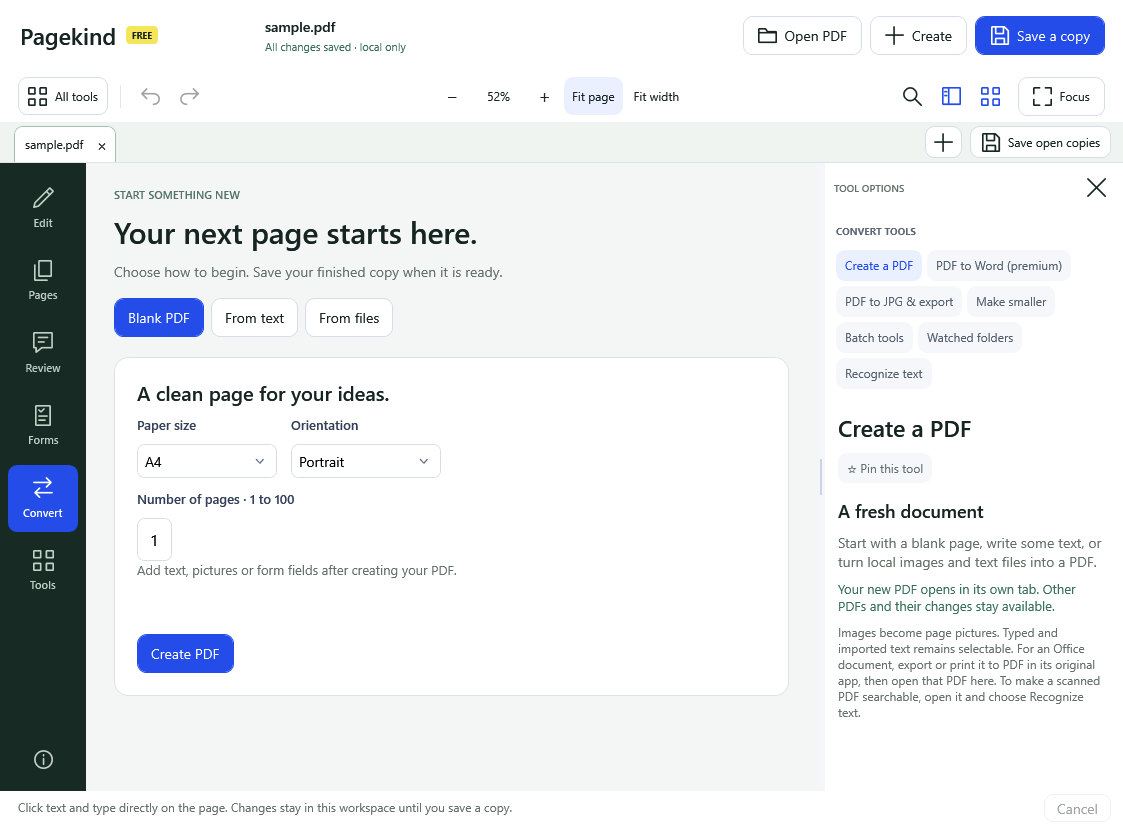
How it works in Pagekind
- 1
Choose Create a PDF, then From files
Use Create at the top, or Create a PDF on the start screen.
- 2
Add your pictures and set the order
Choose Add files and select your JPG or PNG files (up to 200). Select a row and use Earlier or Later to move it, or Remove to leave it out.
- 3
Create PDF, then save a copy
The result opens as a new tab so you can check the pages. Choose Save a copy and a file name. Your original pictures are not changed.
What you get
- JPG, PNG, TIFF, BMP and WebP pictures in one PDF
- Up to 200 files, in the order you choose
- Each picture fits its page without cropping; paper size and orientation are your choice
- Typed text or .txt files can be added as pages too
- Free: no account, no watermark, no upload
Good to know
- Pictures stay pictures. Pagekind does not turn the text inside them into searchable text unless you then run Recognize text.
- Transparent areas become white.
- Very large inputs have limits: up to 512 MiB in total and 24 million pixels per picture.
Questions
Is JPG to PDF free?
Yes, it is part of Pagekind's free tools. No account, no card and no added watermark.
Are my pictures uploaded?
No. The PDF is built on your PC.
Can I put several pictures into one PDF?
Yes. Add up to 200 files and put them in order. Each picture becomes a page.
Which picture types work?
PNG, JPEG, TIFF, BMP and WebP, plus UTF-8 text files.
Can I make the text in a photographed page searchable?
After creating the PDF, open Recognize text. It uses Windows OCR with a language installed on your PC.