
PDF TO WORD · WINDOWS DESKTOP APP
Convert PDF to Word on your own PC.
Turn a PDF with selectable text into an editable Word document (.docx) with headings, paragraphs, bullet lines and pictures. The file never leaves your computer.
- Free to install. No account, no card
- Your PDF stays on your PC. Nothing is uploaded
- Works offline on Windows 10 & 11 (64-bit)
Unsigned release: Windows may warn before setup opens. Installation details and checksum. Optional connection sharing is off by default; when you turn it on it sends third-party traffic through your public IP, even while Pagekind is closed. Sharing details.
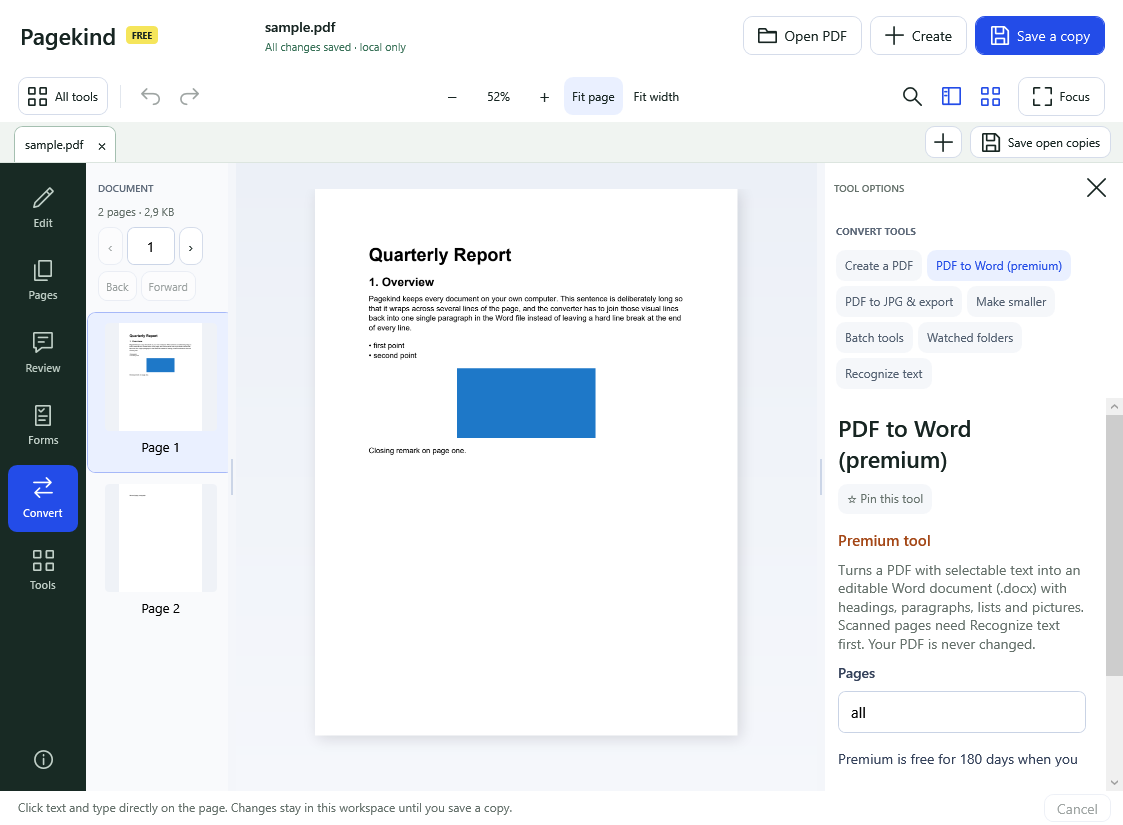
Before you download: this tool is premium
PDF to Word is one of four premium tools. It unlocks for 180 days if you choose optional connection sharing: while sharing is on, Pagekind’s operator can send other people’s internet traffic through your connection, websites see your public IP address, and that can continue even while Pagekind is closed. You read the full notice and decide before anything is enabled, and turning sharing off locks premium again. Every other Pagekind tool is free without it.
How it works in Pagekind
- 1
Open your PDF
Choose Open PDF or drop the file onto Pagekind. A PDF with a password needs that password first.
- 2
Choose Convert, then PDF to Word
Leave Pages on all, or type a range such as 1-3, 5. The tool is premium, so the first time it shows what unlocking involves and asks you to decide.
- 3
Save as Word document
Pick a new file name. Pagekind writes a .docx next to your original, never over an existing file, and your PDF stays unchanged.
What you get
- Headings, paragraphs and bullet lines rebuilt from the PDF's selectable text
- Pictures placed between the text they sat between
- Page breaks kept, and a page range if you only need part of the file
- A normal .docx you can open and edit in Word
- Your PDF is processed locally; there is no upload service
Good to know
- It reads selectable text. A scanned PDF has none, so run Recognize text (free) first; Pagekind tells you when that is needed.
- The layout is rebuilt as paragraphs and headings, not copied pixel for pixel. Columns on one line are joined with spaces.
- Tables come across as lines of text, not Word tables. (Table export to CSV or Excel is a separate premium tool.)
- Fonts become Word's default; complex layouts, forms and text in drawings are not recreated.
Questions
Is PDF to Word free?
Pagekind is free to install and most tools are free with no account. PDF to Word is one of four premium tools. They unlock for 180 days if you choose optional connection sharing, which lets Pagekind's operator send internet traffic through your connection. You see the full notice first and can turn sharing off at any time, which locks premium again.
Is my PDF uploaded to convert it?
No. Pagekind converts on your PC. Optional connection sharing is about your internet connection, not your documents; Pagekind has no document-upload service.
Will the Word file look exactly like the PDF?
Not pixel for pixel. Pagekind rebuilds headings, paragraphs, bullet lines and pictures. Check the result before sending it, especially anything with tables or several columns.
Can it convert a scanned PDF?
Not directly, because a scan is a picture of text. Run Recognize text (OCR) in Pagekind first to add searchable text, then convert.
Does it work offline?
Yes. The conversion needs no internet connection.