
SPLIT PDF · WINDOWS DESKTOP APP
Split a PDF or pull out pages on your PC.
Extract the pages you need into a new PDF, remove pages, or split a PDF into separate one-page files. Free, offline, and nothing is uploaded.
- Free. No account, no card, no watermark
- Your PDF stays on your PC. Nothing is uploaded
- Works offline on Windows 10 & 11 (64-bit)
Unsigned release: Windows may warn before setup opens. Installation details and checksum. Optional connection sharing is off by default; when you turn it on it sends third-party traffic through your public IP, even while Pagekind is closed. Sharing details.
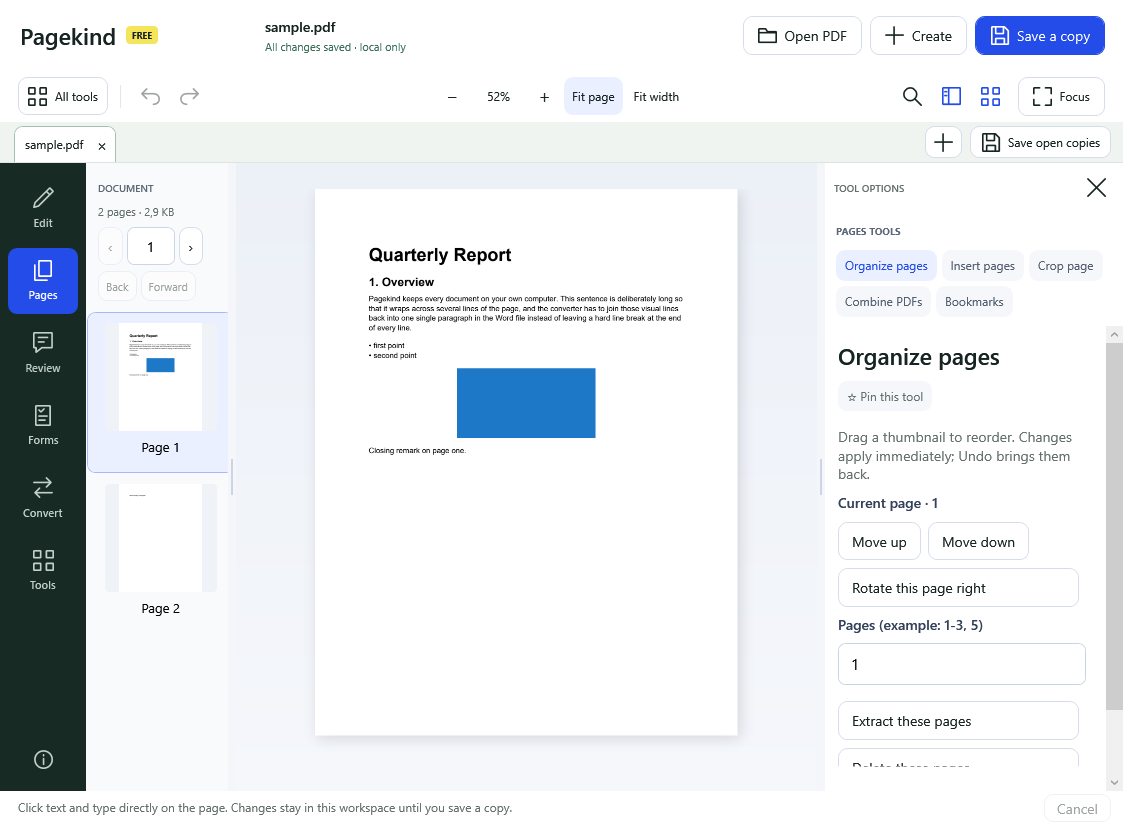
How it works in Pagekind
- 1
Open your PDF
Choose Open PDF or drop the file onto Pagekind.
- 2
Choose Pages, then Organize pages
Type the pages you want, such as 1-3, 5. Choose Extract these pages for a new PDF with only those pages, Delete these pages to leave them out, or Split into separate PDFs.
- 3
Save the result
Splitting saves a ZIP of separate page PDFs. Extracting and deleting save a new PDF. Your original is not changed.
What you get
- Extract any page range into a new PDF
- Delete pages from a copy
- Split into one PDF per page, in a ZIP
- Reorder, rotate or crop pages in the same place
- Free: no account, no watermark, no upload
Good to know
- Splitting makes one file per page. To keep a range together, use Extract these pages.
- Removing or duplicating pages in a tagged (accessible) PDF can lose its accessibility tags; Pagekind says so.
- A PDF with a password needs that password first.
Questions
Is splitting a PDF free in Pagekind?
Yes. Page tools are free: no account, no card and no added watermark.
How do I extract just pages 3 to 5?
Open Pages, then Organize pages. Type 3-5 in Pages and choose Extract these pages.
Does it change my original PDF?
No. You save a new file and the original stays as it was.
Can I split a big PDF into single pages?
Yes. Choose Split into separate PDFs and save the ZIP.
Is the PDF uploaded?
No. Everything happens on your PC.