
PDF TO JPG · WINDOWS DESKTOP APP
Convert PDF pages to JPG on your PC.
Save every page, or just the pages you choose, as JPG pictures in one ZIP file. Pick the sharpness from small files to 300 DPI print quality. Free, offline, no upload.
- Free. No account, no card, no watermark
- Your PDF stays on your PC. Nothing is uploaded
- Works offline on Windows 10 & 11 (64-bit)
Unsigned release: Windows may warn before setup opens. Installation details and checksum. Optional connection sharing is off by default; when you turn it on it sends third-party traffic through your public IP, even while Pagekind is closed. Sharing details.
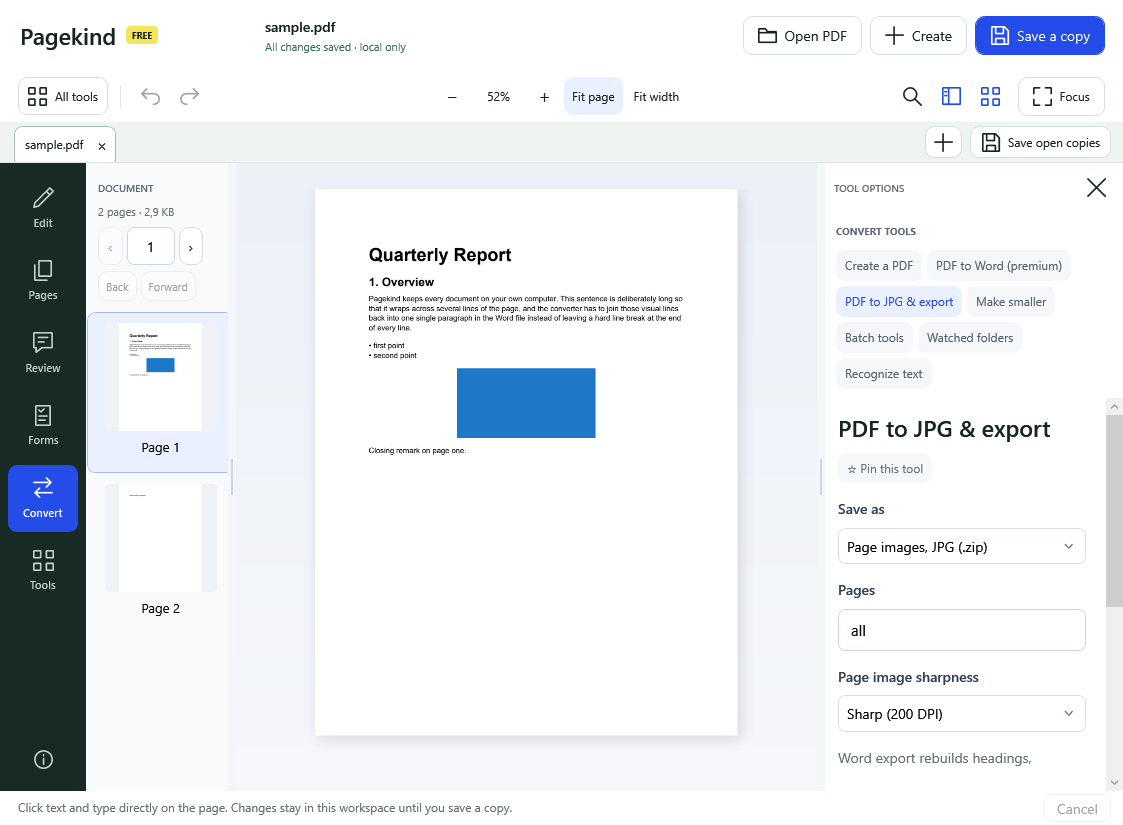
How it works in Pagekind
- 1
Open your PDF
Choose Open PDF or drop the file onto Pagekind.
- 2
Choose Convert, then PDF to JPG & export
Set Save as to Page images, JPG (.zip). Leave Pages on all or type a range such as 1-3, 5, and choose the sharpness: 96, 144, 200 or 300 DPI.
- 3
Export and save
Name the ZIP. Inside you get one numbered JPG per page (page-0001.jpg and so on). Your PDF stays unchanged.
What you get
- One JPG per page, in a single ZIP
- Choose all pages or a range
- Four sharpness levels from small files to 300 DPI
- PNG pages and embedded pictures are in the same tool
- Free: no account, no watermark, no upload
Good to know
- Higher sharpness makes bigger files; 300 DPI pages of a long PDF can take a while and a lot of space.
- JPG compresses with some loss. If you need exact pixels, choose PNG pages in the same tool.
- A PDF that does not allow extraction needs its owner password first.
Questions
Is PDF to JPG really free?
Yes. It is one of Pagekind's free tools: no account, no card and no added watermark.
Are my pages uploaded?
No. Pages are drawn and saved on your PC; Pagekind has no document-upload service.
Can I convert only some pages?
Yes. Type a range such as 1-3, 5 in Pages. Leave it on all for the whole document.
What resolution should I choose?
144 DPI suits screens and messages. 96 DPI makes the smallest files. 200 to 300 DPI is better when you plan to print or zoom in.
Can I get the pictures that are inside the PDF instead?
Yes. In the same tool, choose Embedded pictures (.zip) to extract the pictures stored in the PDF.